
A customer has paid, the order is visible in Shopify, and the fulfillment portal has no matching entry. Sending the warehouse a screenshot may get the conversation started, but it leaves a practical question unanswered: did the integration miss the order, exclude it under an import rule, or place it somewhere outside the current view?
For a merchant investigating Shopify orders not syncing, that distinction determines the next action. A missing record needs a different response from an imported order awaiting processing. Creating another order before locating the original can leave two instructions for the same purchase.
Is the Order Missing or Hidden by a Filter?
Start with one affected order. Record its store name, displayed order number, Shopify order ID where available, and creation time. Search the fulfillment portal using the reference it accepts. A customer name alone is weak evidence because repeat customers can have several purchases, and two connected stores can use similar order numbers.
If the portal offers filters, remove the date and status restrictions relevant to your search. Include archived or exception views where available. Check the time zone when comparing dates: an order placed near midnight may appear under a different calendar day in another system. This is a search check, rather than evidence that the integration has failed.
Finding the record changes the investigation. Compare its products, quantities, and status with Shopify. An entry awaiting procurement payment or another processing step has already crossed the initial import boundary. Follow that stated requirement with the provider instead of asking support to import the purchase again.
For genuinely absent entries, compare the affected order with a recent successful import from the same store. Note differences in payment status, sales channel, item assignment, and creation date. A useful comparison narrows the question to a condition support can examine; a list of unrelated missing orders rarely does.
Check Import Eligibility and Fulfillment Assignment
Payment and historical orders need separate checks
An app’s import rules determine which orders it brings into its own system. Ask the provider which payment states and order types the connected workflow accepts. A paid customer order does not prove that every other import condition has been met. Equally, an unpaid order being absent does not establish a technical fault.
Older purchases deserve their own question: does this connection retrieve orders created before authorization, or only eligible orders afterward? Do not assume reconnecting the store will recover its history. Ask whether historical retrieval is supported, what information identifies the eligible orders, and how existing provider records will be checked before any retrieval proceeds.
The assigned location can explain partial visibility
Shopify groups fulfillment work by location, and an app’s access affects which fulfillment orders it can retrieve. Its fulfillment order documentation explains that an app can receive only a subset of the fulfillment work associated with an order. A merchant should therefore check the affected items’ assignment, rather than treating the whole order as one indivisible record.
Consider a hypothetical basket containing a supplier’s product and an item dispatched by the merchant. The supplier may only be responsible for its assigned item. If the missing product belongs to another location, support needs that assignment detail before investigating an apparent Shopify fulfillment integration failure. This example describes a possible configuration, not an LZ customer case.
A fulfillment request is another separate event. Shopify’s app fulfillment guidance distinguishes requesting fulfillment from the provider’s acceptance. An In progress label can cover a request awaiting a response. Check the detailed status and timeline; neither a paid label nor an overall status tells you everything the receiving service has acknowledged.
If all recent orders stopped appearing after a connection change, ask the integration owner to inspect store authorization and access. Record when the last successful import occurred and what changed afterward. Avoid removing the app as a first experiment: support may need to inspect the current connection before recommending reauthorization.
Match the Order Before Trying Another Import
The retry decision should follow a search on both sides. Ask the provider to look for the original Shopify reference and any associated internal record. If its portal uses a different identifier, retain the relationship between those references in your investigation notes. The important question is whether fulfillment work already exists for the purchase.
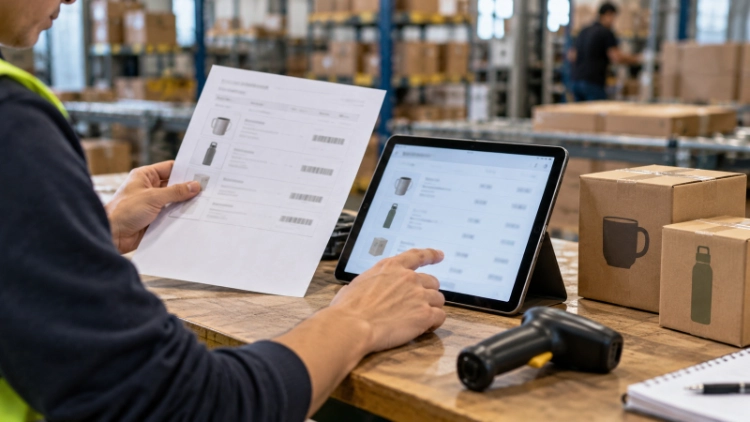
A compact record makes that check easier:
| Evidence | Que faut-il enregistrer ? | Why it matters |
| Store and order | Store domain, order number, Shopify ID | Identifies the original purchase |
| Timing | Created and paid times, with time zone | Supports eligibility and sequence checks |
| Items | Variant, SKU, quantity, assigned location | Identifies the affected fulfillment work |
| Provider search | Search reference, result, internal ID if found | Separates missing data from an existing entry |
| Proposed recovery | Responsible person and agreed action | Keeps one coordinated recovery route |
A supported retry, historical retrieval, or manual submission may be appropriate after the provider identifies the gap. Which route works depends on that integration. Before proceeding, establish whether the action updates an existing record or creates a new one, and who will check the resulting entry. A generic refresh button cannot answer those questions.
If a manual workaround is necessary, keep the original Shopify reference attached to the instructions and tell the provider about the failed automatic import. Agree how a later arrival of the original record will be handled. Otherwise, the manual purchase and a delayed import can become separate warehouse tasks without either operator realizing why.
Give the Provider an Order They Can Investigate
A support request should describe the evidence already collected. Include the affected order, a successful comparison order if available, the assigned items, search results, and the time the absence was observed. State whether the problem affects one purchase, one product, or all new orders. These are different investigation scopes and should not be bundled under “sync is broken.”
LZ’s automatic fulfillment service connects order synchronization with picking, packing, shipping, and tracking. LZ also operates its own ERP and offers dedicated customer communication. For a missing order, those service elements provide a practical reason to compare the Shopify purchase with the provider’s receiving record before discussing warehouse execution.
Before asking LZ to retrieve an older purchase or repeat an import, confirm the applicable retrieval range and recovery process for the connected store. A specific response should identify whether the order was received, what prevented progress, and what the merchant or provider must do next.
Conclusion
Resolving a missing Shopify order starts with locating its record, testing its eligibility, and checking the responsible fulfillment location. Once support identifies where the handoff failed, recovery can target that step. To discuss an affected connection with LZ Dropshipping, bring one order reference and the comparison evidence rather than submitting the same purchase through another route immediately.
Trace your missing Shopify order with LZ and share the affected order reference, assigned items, and the results of your portal search.
Questions fréquentes
Q1: Why are paid Shopify orders not appearing in my fulfillment app?
A1: Payment is only one condition. Check the portal’s search filters, the provider’s import rules, store authorization, and the affected items’ fulfillment assignment. Give support a specific paid order to investigate.
Q2: Will connecting an app import older Shopify orders?
A2: That depends on the provider’s historical import support. Confirm eligibility before requesting retrieval, and ask how orders already present in the receiving system will be identified.
Q3: How can I resend an order without duplicate fulfillment?
A3: Have the provider search for the original reference first. Agree on one supported recovery action and check the resulting record before creating any additional warehouse instructions.